- Deals can be created by taking a variety of actions, but most of our deals will be created when clients fill out or our deal forms sent via email. You can find the deals queue by navigating to HubSpot>CRM>Deals.

- The picture above shows the entire deal pipeline. You can scroll left to right and manually move the deal cards by dragging and dropping them into a new queue.
- New deals will always be found in the Unprocessed Queue on the left of you screen. At this stage a deal form was filled out but not other action was taken.
- If you click on the title of any deal, it will open that deal and provide more information about the prospect. That screen will look like the one below:
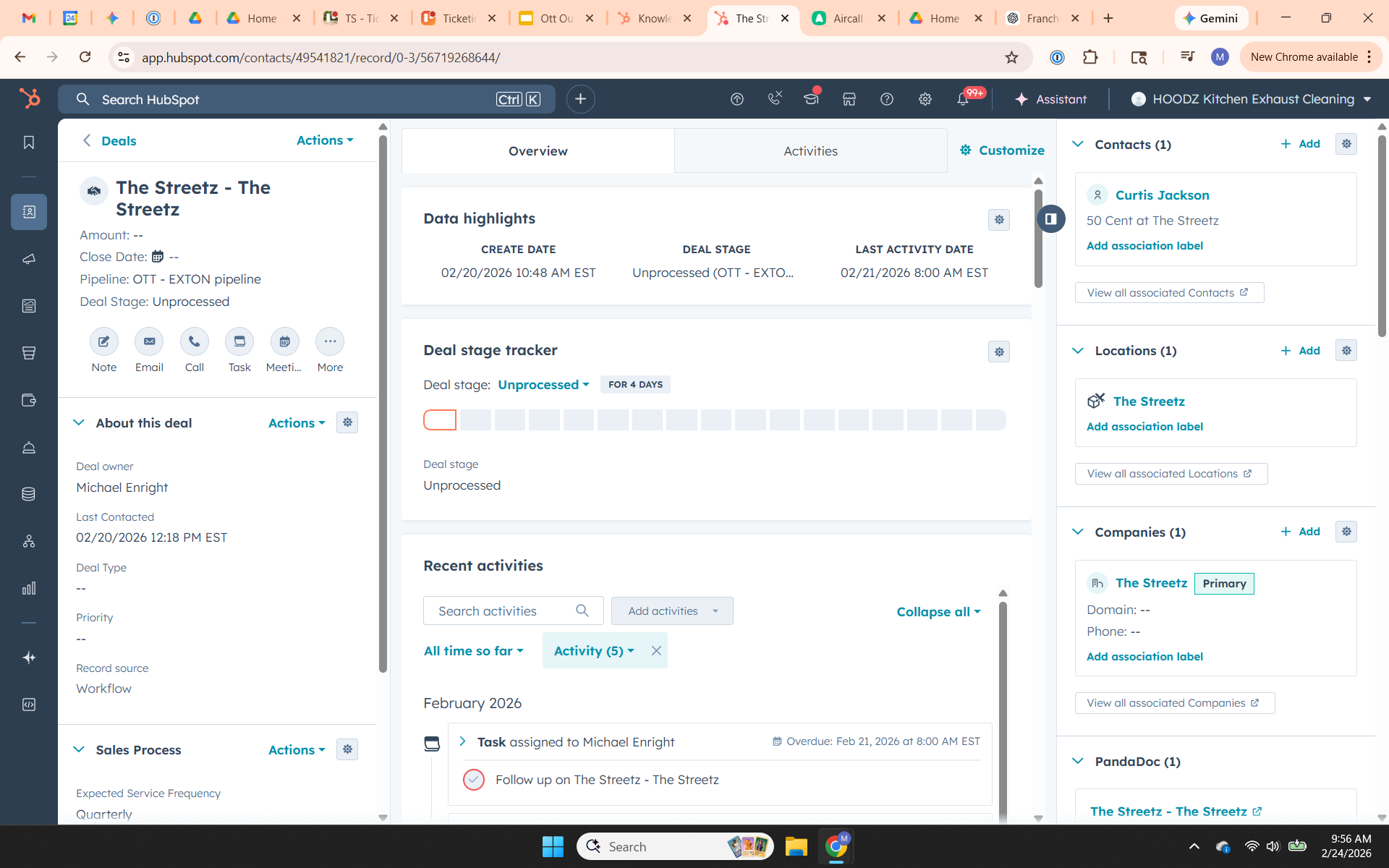
- The Deal Stage Tracker in the middle of the screen allows you to move the deal into different queues by selecting the queue from a drop down.
- The Recent Activities card provides insight to any and all communication throughout the deal lifecycle. You can send emails or reach out to the client directly from this card.
- If you click on the title of any deal, it will open that deal and provide more information about the prospect. That screen will look like the one below:
- After a deal is reviewed and the client is validated, the deal card will be moved to its respective queue based on when the service is required or to site survey scheduling.
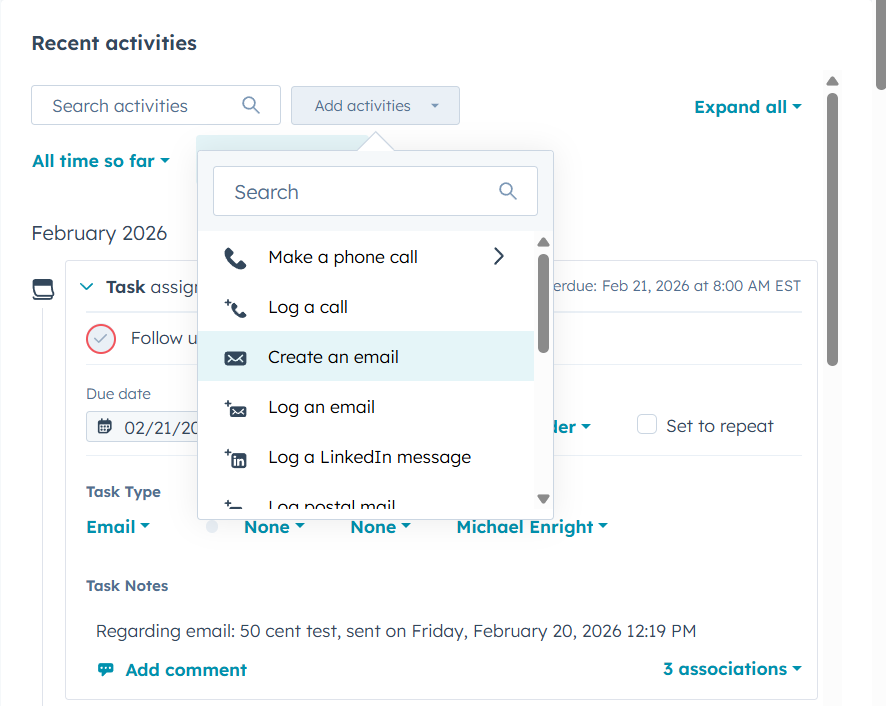
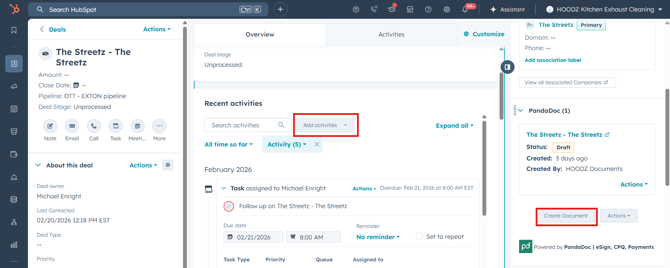
- After the site has been surveyed, you can create the proposal using the PandaDoc Card on the right of your screen and send the proposal through the Recent Activities Card> Add Activities:
- Once a decision has been made by the prospect, move the deal card to its final stage. Follow up with the client for all work that was not won and begin scheduling work for all deals that are won.
*Best Practices*
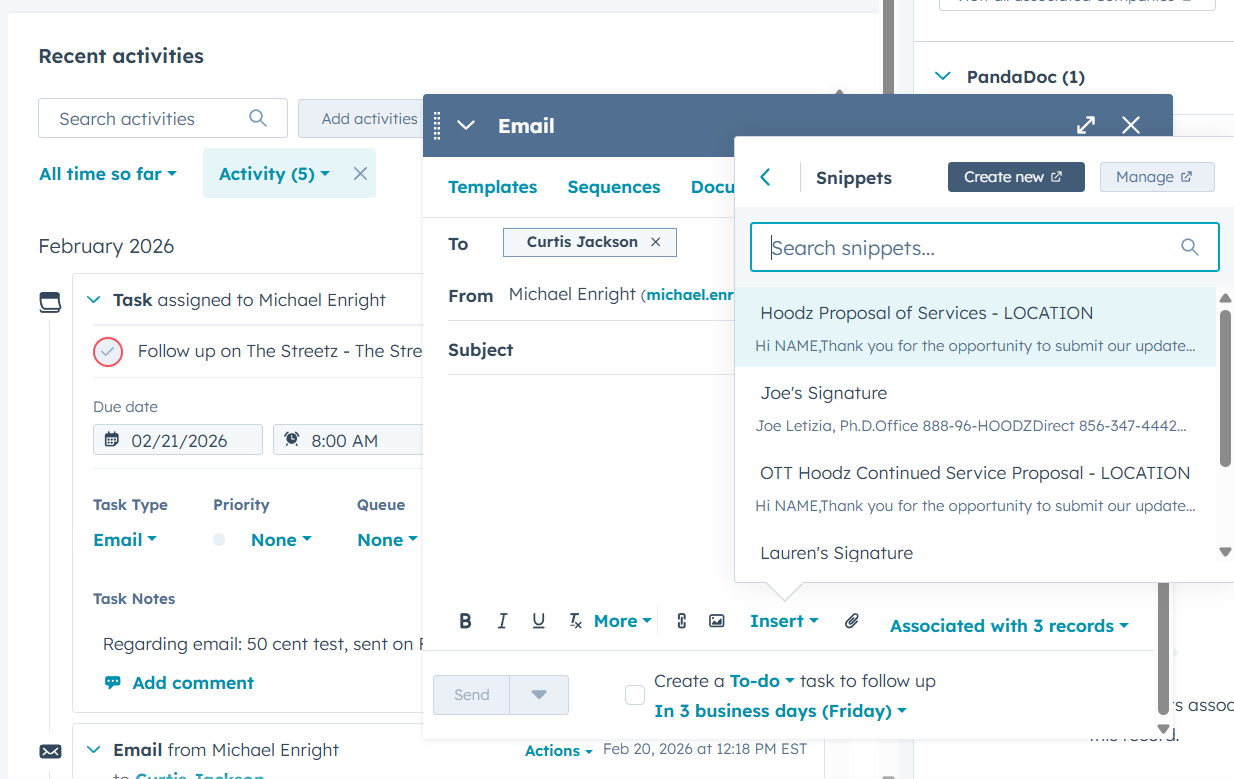
Use Snippets as email templates for consistency and easy communication:
Recent Activities Card>Add activities dropdown>Create an email>Insert>Snippets.
Find the proper snippet for your activity and fill in the client specific data on the template.