-
BS: Log into BlueSnap using the "Payouts Report" link in the notification email we received.
- QBO: Log into QBO and open the BlueSnap Vendor page. On the BS vendor page, locate the most recent expense and Copy it using the Actions dropdown at right. IMPORTANT: Note the date of that most recent expense you copied since this will be used to identify the BlueSnap Payout Report you will work on in steps below.
- MAINTAIN DATE UNIFORMITY: To ensure you are working sequentially and not skipping ahead or missing payout reports, always use the BS payout's "Planned Date" as the QBO expense date and QBO deposit date. Using the same date lets you easily match up the payout report with the QBO expense and bank deposit entry.
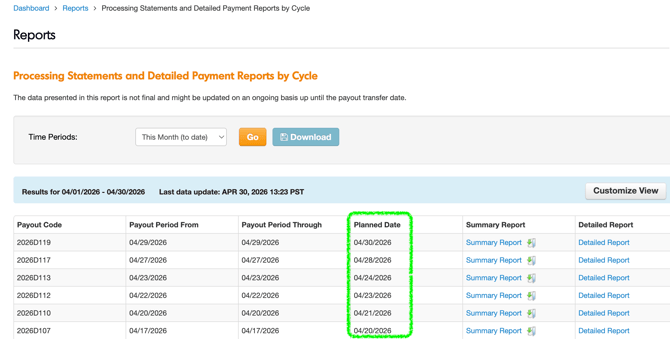
- BS: In BlueSnap, select the "Summary Report" for the earliest Planned Date that is not recorded in QBO. When doing this day of notification, there will be only payout date to process.
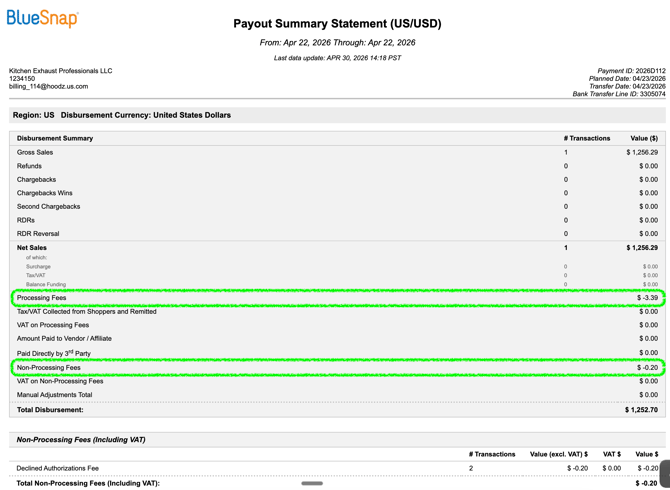
- BS: In the Payout Summary Report, locate the 2 sets of fees "Processing Fees' and "Non-Processing Fees". You will enter both of these into the QBO expense in the next step.
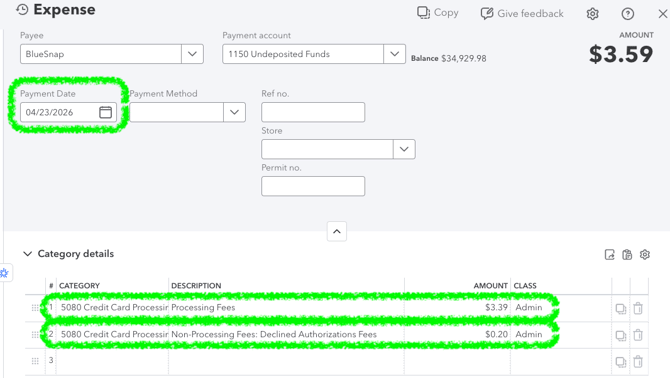
- QBO: To record the BlueSnap expenses in QBO is to enter the BS planned date as payment date, processing fees, and non-processing fees into the new expense you are creating, then click Save and Close.
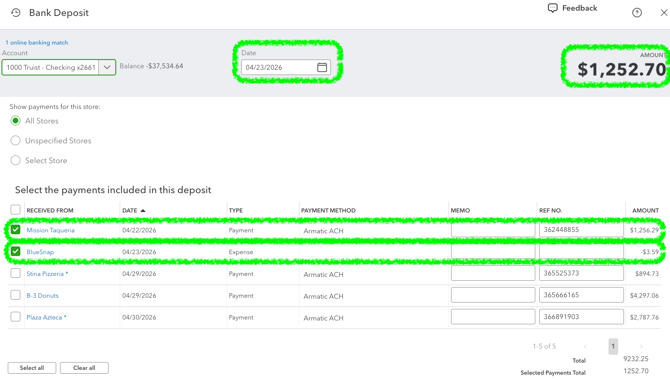
- QBO: The final step is to record the deposit. Start with the "Create +" menu then under other select bank deposit. Ensure the deposit date matches the BS planned date, select the BlueSnap expense you just created as well as all of the payments that are connected to the settlement. Verify the amount of the deposit matches exactly the "Total Disbursement" from the BS statement. Click Save and close.